/uo16l760swxuuj3v16tsbkqff2x6)
Welcome to the Greater Baltimore DSA Discord Guide! 🌹
This guide is for folks who are new to our Discord server, new to our DSA chapter, or both!
What is Discord? Discord is a communication platform that acts as a hub for our chapter communications, deliberation, ongoing work, and socializing with members in between meetings. It enables us to interact over chat, voice, and video. The different community spaces on Discord are called servers.
Our Discord server is for members only. Please follow the instructions here if you have not joined yet: gbdsa.org/join
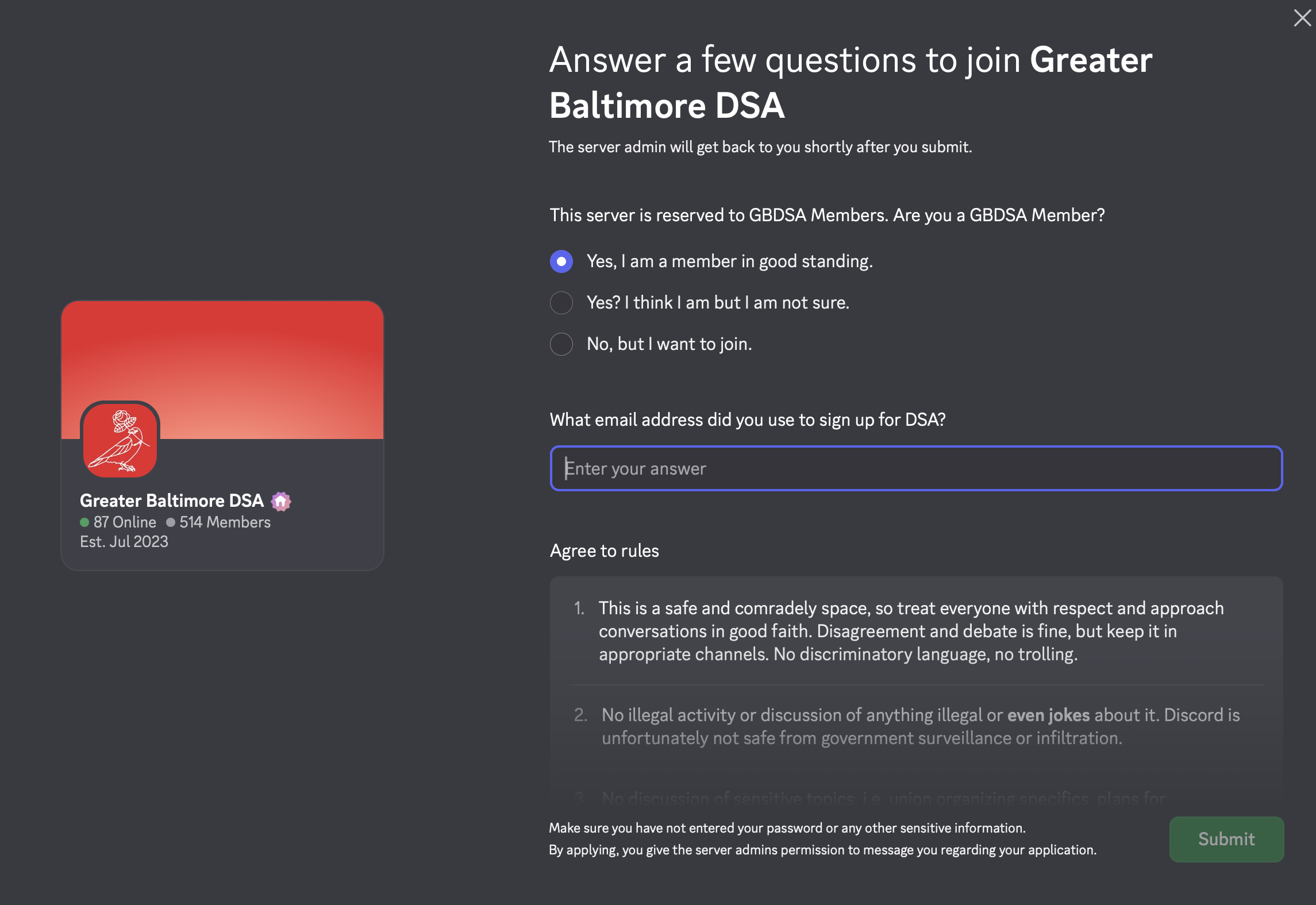
If you have not yet applied to be in our Discord server please use this link to apply: gbdsa.org/s/discord
You can download Discord as an app on your phone or desktop or even access it through the browser. If you need help creating an account follow this guide.
When joining you will need to agree to our server rules and share the email you used to sign up for DSA, which will help us verify your membership!
1. Getting Started: Display Name, Channels & Roles
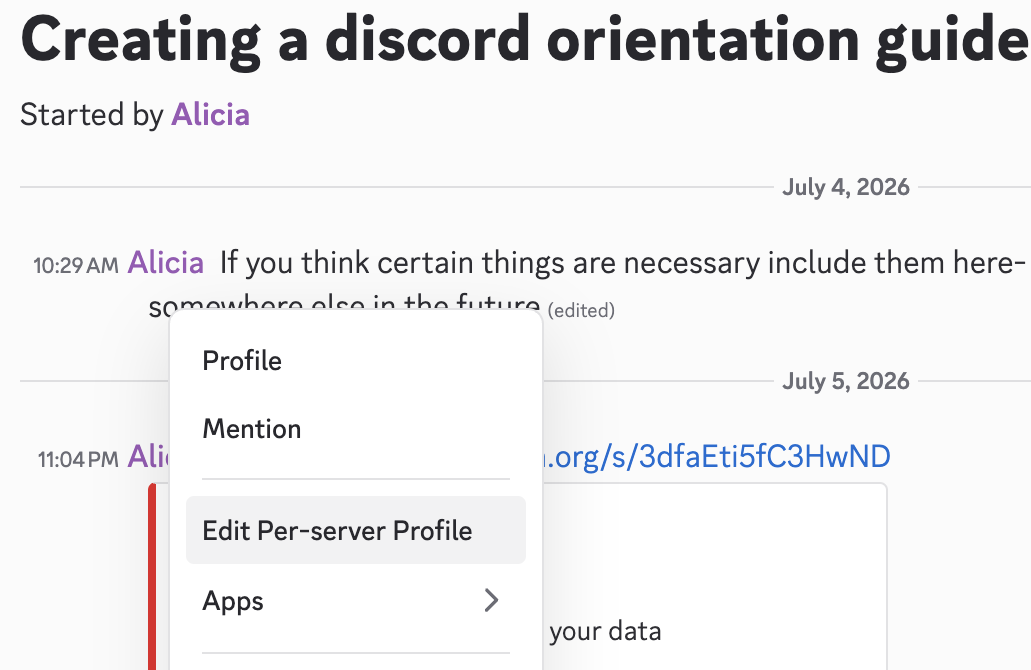
Discord enables you to have different display names in different servers. For our server, we ask you to use whatever name you go by in person. To change your display name right-click on the server icon or on your own avatar/username on a recent message that you've sent within the text channel to see the Edit per-server profile option. Once you've pressed on that option, all you'll need to do is fill out your new nickname and then press Save!
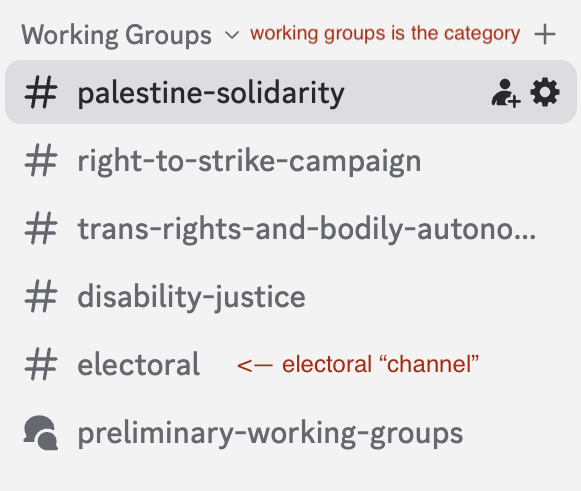
Discord servers are organized into channels (these are the things with # in front of their name, they are like chat rooms for specific topics) grouped into categories. Channels provide dedicated spaces for written conversations, helping to keep discussions organized.
For example, if you want to look at conversation pertaining to a specific working group, check out the working groups category and find the particular channel of interest and click it. Then you can read and participate in the conversation.
We have lots of channels, so you can use roles to help you get notifications for what you care about
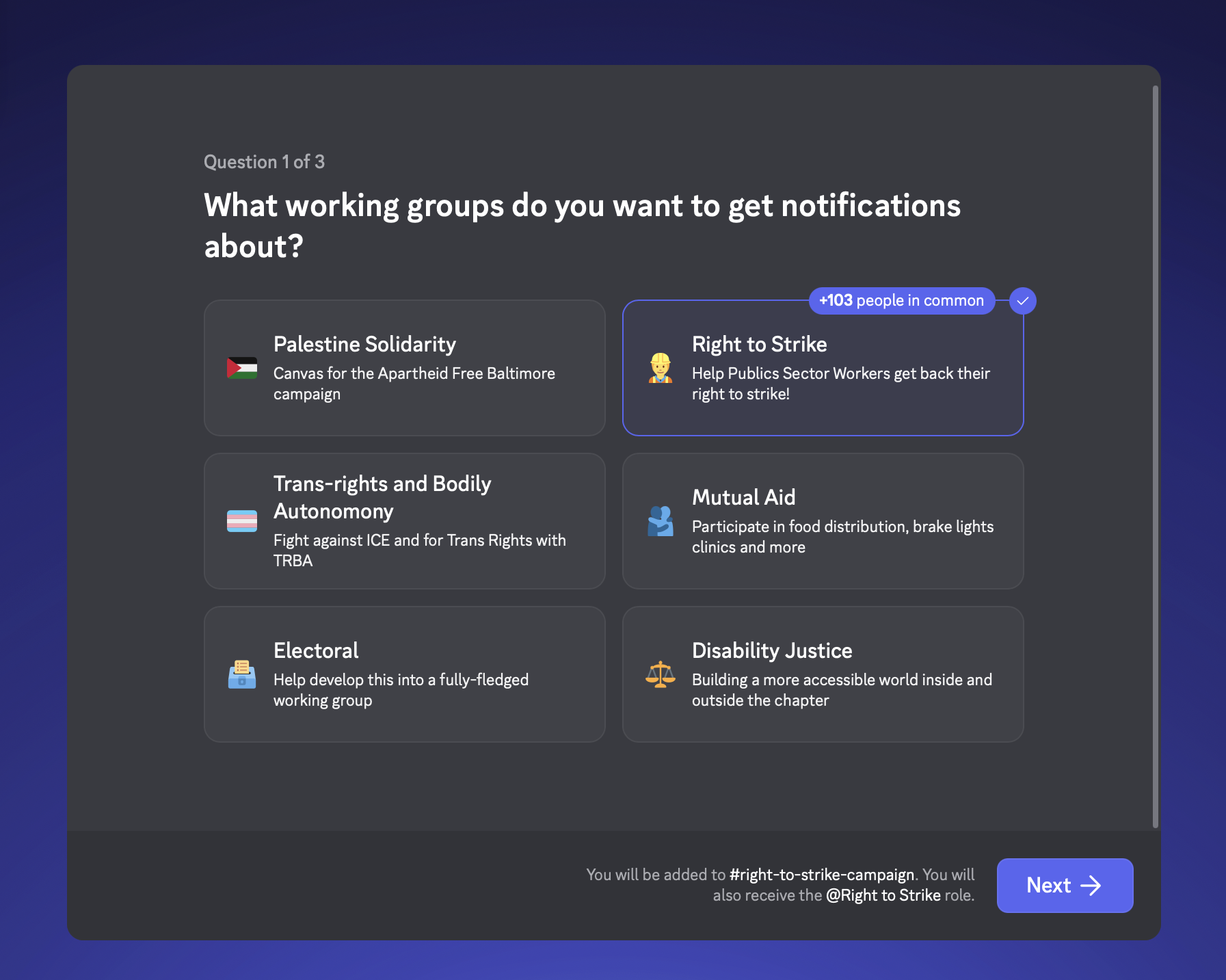
How to set this up:
When you enter the server you can click the roles you want and then submit. After you have been added to the server you can still click Channels & Roles near the top of the channel list (magnifying glass icon).
Go to the Customize tab and check off the working groups, committees, and interest areas you want to follow (e.g. Palestine Solidarity, Right to Strike, Book Club, Mutual Aid, Political Education, etc.).
Checking a role gives you notifications for that topic (as long as discord notifications are enabled in your device settings)
Changed your mind? Click Channels & Roles again and uncheck the role at any time.
Want alerts for just one channel?
Right-click that channel (or category) → Notification Settings → “All messages” (I recommend doing this for the #announcements channel especially)
2. Understanding “Threads”
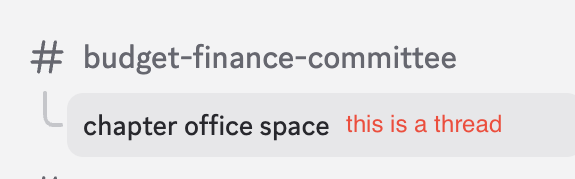
Threads are mini side-conversations that branch off a channel so the channel doesn't get cluttered. For example, in the image below a member started a thread to talk about a chapter office space inside the #budget-finance-committee channel.
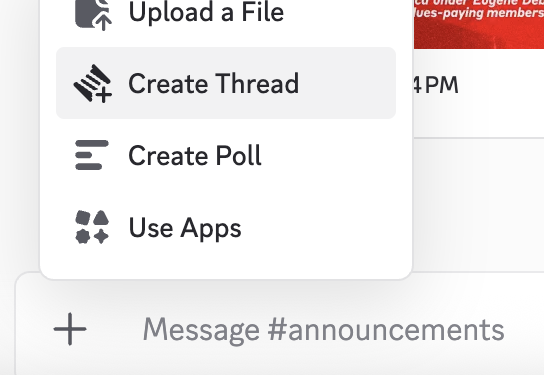
Start a thread: Click the + icon next to the message box.
Join a thread: Posting in it joins you automatically. To join without posting, right-click the thread and select Join.
Tagging @everyone in a thread only notifies people already in that thread, it does not ping the whole server - but seriously only in a thread ok?
Find old threads: Open a channel and click the thread icon in the top-right corner to see all threads in that channel.
Heads up: If you don't join a thread when it's created, it won't show up in your channel list, and you might miss a conversation. If a thread is getting long and important, it's good practice for the poster to drop a link back in the main channel or tag the relevant person directly!
3. Proposals & Deliberation
A couple of channels use Discord's forum format instead of regular chat — each topic gets its own post with comments, rather than one long scrolling conversation. These are the main places chapter decisions and brainstorms happen:
#chapter-proposals
This is where proposals for the chapter live and can be discussed — resolutions, by-laws amendments, appointments, new committees, or projects/events you think the chapter should take on.
Each post is its own proposal, and people discuss and react in the comments.
Click New Post to start a proposal.
Make your case in the post, then use the comments to build support, get advice and work out details.
Examples you'll see here: proposing a resolution or bylaw, launching a new branch, adopting a policy.
#ideas
This is the more casual, upstream version of #chapter-proposals. It is a place to float things you have in mind for the chapter even if they're not fully formed yet. Think of it as a brainstorming space before something becomes a formal proposal. People will still give you advice and feedback.
Also uses New Post to start a new idea thread.
If an idea gains traction here, it's common for someone to later turn it into a formal post in #chapter-proposal
4. Quick Reference
Looking for... | Go to... |
Discord support or help | #discord-support |
Server rules | #rules-and-etiquette |
Chapter-wide announcements | #announcements |
Deliberation and brainstorming outside of General Body Meetings | #chapter-proposals, #ideas |
Asking a steering committee member something | #ask-a-steering-member |
General casual chatting | #discourse, #off-topic, #memes |
Political education / reading groups | #political-education, #chapter-education, #history-and-socialist-theory |
Change your roles | Channels & Roles → Customize tab |
Local/county-specific chat | #baltimore-county, #howard-county-action, #harford-county, etc. |
Events | Events tab in the sidebar will open our discord calendar of events |